
Important Information for Existing Users
When you sign in to the new authentication system for the first time after July 7, 2026, you will be required to complete a few one-time setup steps:
- You will need to reset your account password the first time you log in after July 7, 2026.
- Sign in using your registered email address instead of your User ID (new sign-in method).
- Email Authentication will automatically be configured as your default two-factor authentication (2FA) method.
- After signing in, you can optionally configure a supported authenticator app for future logins.
ℹ️ Note:
- These steps only occur the first time you sign in after the authentication system has been updated.
- If you do not receive the password reset email, please check the following:
- Check your Spam or Junk folder to ensure the email was not filtered.
- Configure your email settings to allow messages from @infinicloud.com.
Introducing the New Authentication System
Effective July 7, 2026, InfiniCLOUD has launched a new authentication system designed to provide a more secure, reliable, and seamless sign-in experience across InfiniCLOUD services.
The new authentication system introduces stronger account protection, integrates with infini-cloud.net, and provides the foundation for future service integration.
What's New?
| 📧 Sign in with your email address instead of your User ID | 🔐 Centralized authentication service for InfiniCLOUD accounts |
| 🛡️ Two-Factor Authentication (2FA) for enhanced security | ⚙️ Manage Authentication Methods from My Page ➞ Set Up 2FA |
| ⚡ Improved Security stronger protection against unauthorized access | 🚀 Future Ready build for upcoming services and features |
New Sign-In Method
InfiniCLOUD now uses your email address instead of your User ID when logging in.
| Previous Sign-In | New Sign-In |
|---|---|
| User ID | Email Address |
| Password | Password |
| No centralized authentication | Centralized authentication service |
| Limited security features | Supports 2FA |
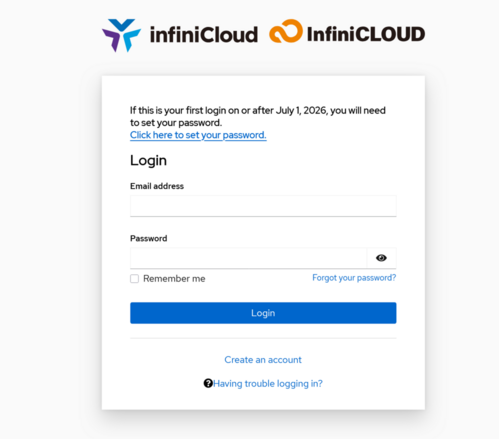
⚠️ Important: If you've previously signed in to your InfiniCLOUD account using a User ID, you must now use the email address associated with your InfiniCLOUD account.
Forgot your registered email address?
If you have forgotten the email address associated with your account but still remember your User ID and password, you can enter them in the form below. An email will be sent to the email address registered to your account.
What is two-factor authentication (2FA)
Two-factor authentication (2FA) is a security feature that adds an extra layer of protection to your account.
Instead of relying only on a password, you'll also verify your identity using a second authentication method, such as an authenticator app or email verification.
💡 Even if your password is compromised, 2FA helps prevent unauthorized access.
Accessing your 2FA Settings
By default, all InfiniCLOUD accounts use Email Authentication as the second verification method.
To manage your authentication methods:
- Sign in to your InfiniCLOUD account.
- Open My Page.
- Select Set Up 2FA.
- You'll be redirected to the new authentication portal.
ℹ️ Note: Sign in using your InfiniCLOUD account. After entering your password, you'll complete a second verification step.


Setting Up an Authenticator App
Step 1 - Sign In
Sign in using your registered email address.
First-time users: You'll be prompted to reset your password before continuing.
Step 2 - Open My Page
Select Set Up 2FA to open the authentication portal.
Step 3 - Select Set up an Authenticator App
Supported applications include:
- Microsoft Authenticator
- Google Authenticator
- Free OTP
Email Authentication remains available and is configured by default after signing in.
Step 4 - Scan the QR Code
Open your preferred authenticator app and scan the QR code displayed on the screen.
💡 Install one of the supported authenticator apps before beginning set up. If you can not scan QR codes, you can manually input the necessary information needed for set up.
Step 5 - Verify Your Device
Enter the one-time verification code generated by your authenticator app, provide a device name, and click Send.
Step 6 - Confirm Registration
Verify that your new authenticator appears under the Security tab in your portal.
Your authenticator app is now successfully registered and can be used for future sign-ins.
Login Support
If the steps above do not resolve your login issue, please contact us using the form below.
If you do not have an InfiniCLOUD account, enter "None" in the User ID field.
InfiniCLOUD Support
Business hours: Weekdays (excluding weekends and public holidays), 10:00 AM - 6:00 PN (JST)
Notes:
- Support is available in English and Japanese only.
- Please note that telephone support is not available.
Published: July 7, 2026